Mobile Malware: Answers to Eight Critical Questions
Mobile malware often hides in legitimate-looking apps, using permissions you grant to bypass standard security checks and steal data silently.

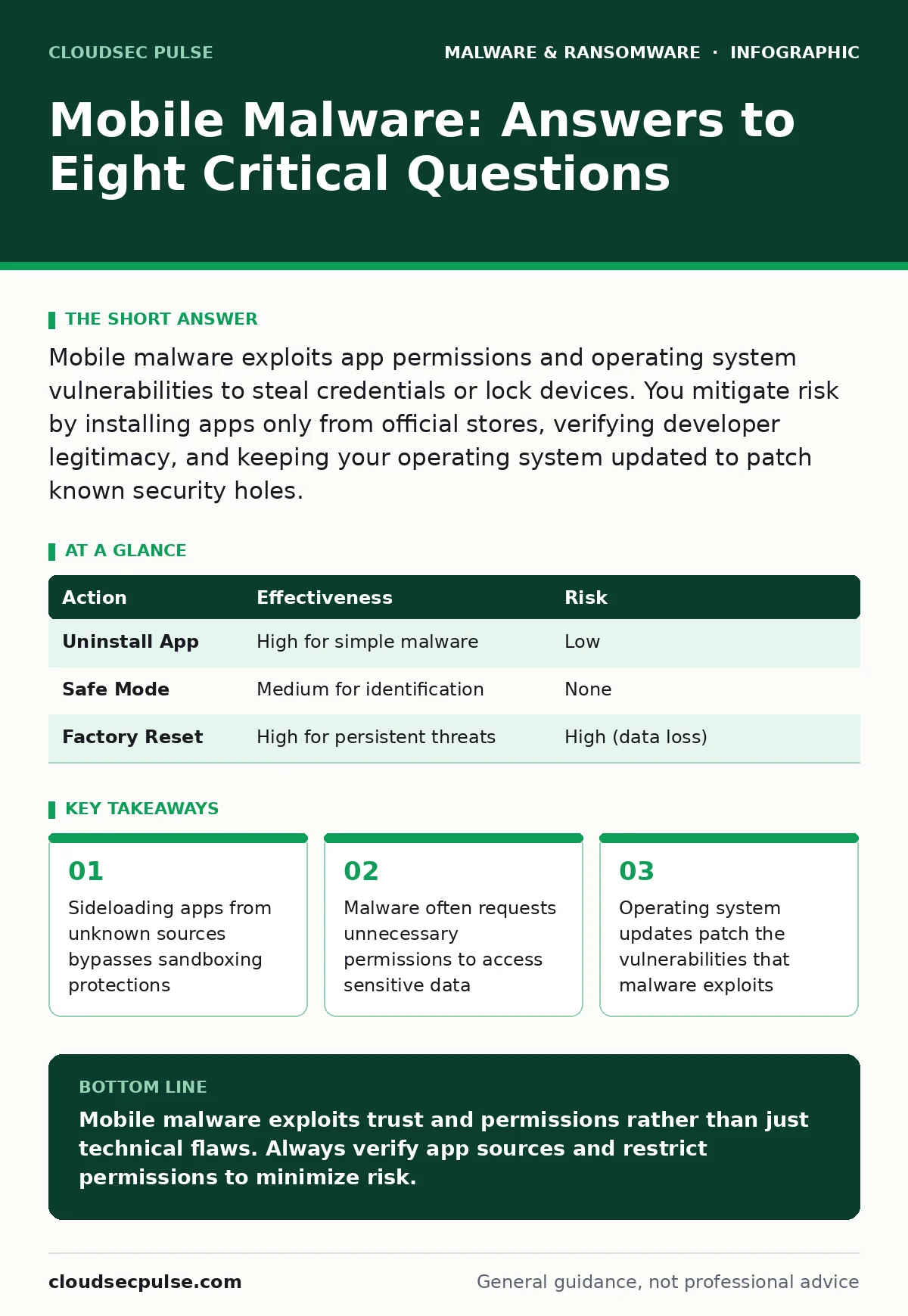
Mobile malware exploits app permissions and operating system vulnerabilities to steal credentials or lock devices. You mitigate risk by installing apps only from official stores, verifying developer legitimacy, and keeping your operating system updated to patch known security holes.
What is mobile malware and how does it differ from computer threats?
Mobile malware is malicious software designed to infect smartphones and tablets, often exploiting the unique constraints of mobile operating systems. Unlike traditional desktop threats, mobile malware frequently relies on social engineering to trick users into granting permissions. This distinction matters because the attack surface shifts from network ports to user interaction.
You face different vectors than on a desktop. While computer worms spread via network shares, mobile variants often spread through malicious application packages. Understanding this shift helps you recognize that the user is often the primary entry point.
How does mobile malware typically get onto a device?
The most common entry point is the installation of unauthorized software from outside official app stores. This practice, known as sideloading, bypasses the security scans that official stores perform. Attackers often host these malicious files on compromised websites or distribute them via messaging apps.
Imagine you receive a link to a "free" version of a popular game. Clicking it may trigger a download that installs a background process. This process runs without your knowledge, consuming resources or stealing input data.
Why do legitimate-looking apps sometimes contain malware?
Developers may inject malicious code into popular apps to reach a large number of users quickly. This technique exploits the trust users place in high-download applications. The malware hides within the legitimate functionality, making it difficult to detect without deep inspection.
This tactic mirrors how fake software updates trick users into downloading harmful payloads. The visual similarity to the real app lowers your guard, allowing the malicious code to execute with the permissions you granted.
What are the most common signs of an infected mobile device?
Unexplained battery drain is often the first indicator of malicious background processes. If your device heats up while idle or data usage spikes, malware may be active. Other signs include unexpected pop-ups, new apps you did not install, or slower performance.
You might notice that certain apps crash more frequently. This instability can result from malware interfering with system resources. Monitor these changes closely, as they often precede more severe data theft.
How does mobile ransomware lock you out of your device?
Mobile ransomware encrypts your files or locks the screen, demanding payment for restoration. It often uses a full-screen overlay that prevents you from accessing any settings. This tactic relies on the urgency of being locked out to force a quick payment.
Unlike desktop ransomware, mobile variants may also steal photos and contacts before locking the device. This double extortion increases the pressure on you to pay. However, paying does not guarantee recovery, as attackers often ignore victims after payment.
See also: Fileless Malware Prevention Checklist: Defend Memory and Scripts · Managed Detection and Response Misunderstandings and Correct Views
Can mobile malware steal banking credentials and passwords?
Yes, malware can use keylogging techniques to record every tap on your screen. It captures sensitive information such as passwords, credit card numbers, and one-time codes. This data is then transmitted to the attacker’s server.
To mitigate this, use biometric authentication where possible. Biometrics are harder to capture via standard keylogging than typed passwords. Additionally, enabling transaction alerts helps you detect unauthorized activity quickly.
Does using a secure operating system prevent all mobile malware?
No, operating system updates patch known vulnerabilities but cannot prevent all attacks. Zero-day exploits target flaws that are not yet known or patched. Furthermore, user error, such as granting excessive permissions, can bypass system protections.
Regular updates are still necessary. They close the doors that malware commonly uses to enter. However, they do not replace the need for cautious app installation habits.
How do you remove mobile malware once it is installed?
Start by booting your device into safe mode, which disables third-party apps. This allows you to identify and uninstall the malicious application. If the malware persists, a factory reset is often the only sure way to remove it.
Before resetting, back up your data carefully. Ensure you do not restore the malware from a backup. This process is similar to static malware analysis in that it requires isolating the threat to understand its impact.
| Action | Effectiveness | Risk |
|---|---|---|
| Uninstall App | High for simple malware | Low |
| Safe Mode | Medium for identification | None |
| Factory Reset | High for persistent threats | High (data loss) |
What is the role of app permissions in mobile security?
Apps request permissions to access specific features like the camera, microphone, or contacts. Malware often requests permissions unrelated to its function to steal data. For example, a flashlight app should not need access to your contacts.
Review permissions before granting them. Restricting access limits what malware can do even if it infects your device. This principle applies to macro malware as well, where users grant execution rights to harmful scripts.
How can you protect your device from future mobile malware infections?
Install apps only from official stores and keep your operating system updated. Use a reputable mobile security solution that scans for known threats. Regularly review app permissions and uninstall apps you no longer use.
These steps reduce your exposure to common threats. They do not eliminate risk, but they significantly lower the likelihood of infection. For a broader perspective, see our guide on malware analysis to understand how threats are identified.
Key takeaways
- Sideloading apps from unknown sources bypasses sandboxing protections
- Malware often requests unnecessary permissions to access sensitive data
- Operating system updates patch the vulnerabilities that malware exploits
Mobile malware exploits trust and permissions rather than just technical flaws. Always verify app sources and restrict permissions to minimize risk.
Frequently asked questions
Is mobile malware a real threat for small businesses?
Yes, employees often use personal devices for work, creating a bridge between personal and corporate data. A compromised phone can lead to data breaches or unauthorized access to business accounts.
Do I need antivirus software on my smartphone?
While built-in protections are strong, antivirus software adds an extra layer of detection for malicious apps. It is particularly useful if you frequently download files from the web or sideload apps.
Can mobile malware spread to my computer?
Some malware is cross-platform and can spread via shared networks or file transfers. Keeping both your mobile device and computer updated reduces this risk significantly.
What should I do if I suspect my phone is infected?
Disconnect from the internet to stop data transmission. Boot into safe mode and uninstall recent apps. If the issue persists, perform a factory reset after backing up essential data.
How this guide was produced: written by the CloudSec Pulse editorial team with AI assistance, checked against the public references listed below, and reviewed when the facts change. See our editorial policy or report an error.