Implement MFA for Cloud Accounts: A Step-by-Step Rollout Plan
Enabling multi-factor authentication creates a dependency on device management that often breaks automated workflows if service accounts are not excluded from the policy.

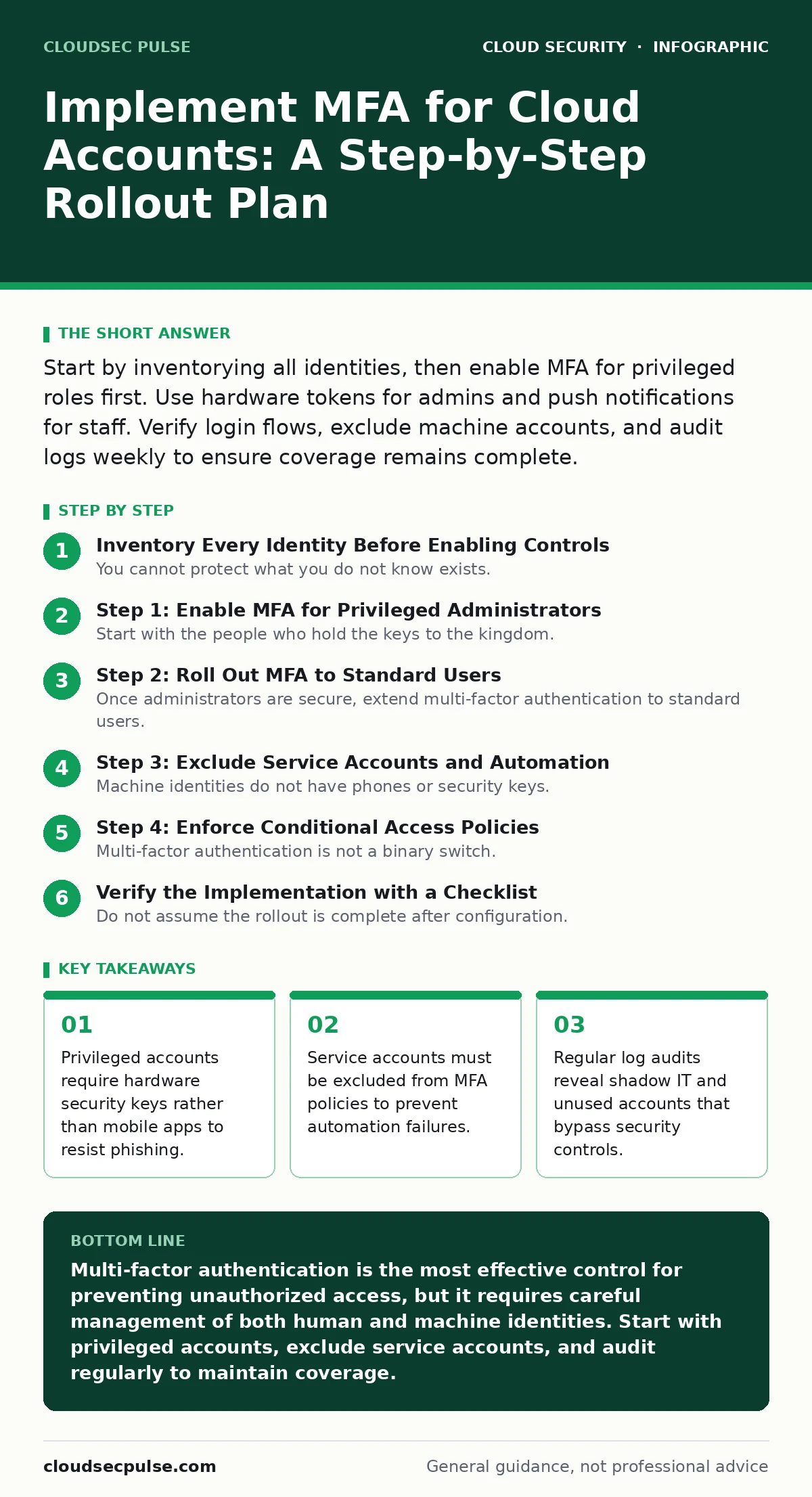
Start by inventorying all identities, then enable MFA for privileged roles first. Use hardware tokens for admins and push notifications for staff. Verify login flows, exclude machine accounts, and audit logs weekly to ensure coverage remains complete.
Inventory Every Identity Before Enabling Controls
You cannot protect what you do not know exists. Begin by listing every human user, service account, and application identity that accesses your cloud environment. Many organizations focus only on human users, leaving automated scripts and service accounts exposed or misconfigured. These non-human identities often hold high privileges and operate without the scrutiny applied to human logins.
Identify which accounts have administrative rights. These are your primary targets for immediate protection. Also note any accounts that have not logged in recently. Stale accounts increase your attack surface without providing business value. Remove or disable them before you begin the rollout. This reduces noise in your monitoring tools and simplifies the deployment process.
Step 1: Enable MFA for Privileged Administrators
Start with the people who hold the keys to the kingdom. Enable multi-factor authentication for all users with administrative privileges. Do not use SMS-based verification for these accounts. SMS messages can be intercepted through SIM swapping, where an attacker tricks a carrier into transferring a phone number to a device they control.
Instead, require hardware security keys or FIDO2 devices for administrators. These cryptographic devices bind the authentication to the physical hardware, making remote phishing attacks ineffective. You will know this step worked when admin logins consistently require the physical token. Monitor the authentication logs for any failed attempts that might indicate an attacker testing stolen credentials.
Step 2: Roll Out MFA to Standard Users
Once administrators are secure, extend multi-factor authentication to standard users. Mobile authenticator apps are suitable for most staff members. These apps generate time-based one-time passwords that change every thirty seconds. This method is more secure than SMS and easier to deploy than hardware keys for large groups.
Communicate the change clearly. Explain why the step is necessary and how it protects their work data. Provide clear instructions on setting up the authenticator app. You will know this step worked when standard users can successfully log in with their password and a generated code. Watch for support tickets related to setup issues and address them promptly to maintain morale.
Step 3: Exclude Service Accounts and Automation
Machine identities do not have phones or security keys. You must exclude service accounts, CI/CD pipelines, and automated scripts from mandatory MFA policies. If you force MFA on these accounts, your automated deployments and data backups will fail. This creates operational friction and may lead teams to disable security controls to restore functionality.
Use managed identities or IAM roles for these accounts instead of long-lived passwords. These mechanisms allow services to authenticate without storing secrets. You will know this step worked when your automation continues to run without interruption. Verify that these accounts still have the least privilege necessary to perform their tasks. Refer to our guide on service account security for deeper strategies on managing non-human identities.
Step 4: Enforce Conditional Access Policies
Multi-factor authentication is not a binary switch. You can refine the experience by using conditional access policies. These rules apply MFA only when specific risk factors are present. For example, require MFA when a user logs in from a new device or an unusual location. This reduces friction for trusted users while maintaining security for suspicious activity.
Define what constitutes a trusted network. If your staff works remotely, this might be difficult. In that case, rely on device compliance signals rather than IP addresses. You will know this step worked when legitimate users face fewer prompts while risky logins trigger additional verification. This balance improves user adoption and reduces help desk volume.
See also: Cloud Security Architecture in Cloud Computing: How to Build It Right · Attack Surface Reduction: Practical Steps for Small Business Security
Verify the Implementation with a Checklist
Do not assume the rollout is complete after configuration. You must verify that the controls are working as intended. Use the following checklist to confirm your setup.
- All administrative accounts require hardware security keys or FIDO2 devices.
- All standard user accounts require an authenticator app or comparable method.
- Service accounts and automation are excluded from MFA prompts.
- Conditional access policies trigger MFA for risky sign-ins.
- Backup methods are configured for all users in case of device loss.
Test the login flow for each user type. Attempt to log in without the second factor to ensure it is rejected. Then log in with the correct factors to ensure it is accepted. This manual verification catches configuration errors that automated checks might miss.
Maintain Coverage Through Regular Audits
Security is not a one-time project. You must maintain your multi-factor authentication posture over time. New employees will join, and roles will change. Without regular audits, gaps will appear. Review your identity management logs weekly to identify any accounts that do not meet the MFA requirement.
Look for accounts that have been created recently but lack MFA enrollment. These are often temporary or shadow IT accounts that slipped through the process. Disable them until they are properly configured. Also review the authentication logs for anomalies. A sudden spike in failed MFA attempts can indicate a targeted attack. Integrating these checks into your routine helps you stay ahead of emerging threats. See our guide on cloud compliance for frameworks that help structure these ongoing audits.
Handle Edge Cases and User Friction
Even with a perfect rollout, users will encounter issues. Travelers may lose connectivity, preventing push notifications. Users may lose their phones. You must have a recovery plan in place. Provide clear instructions on how to use backup codes or register a new device.
Avoid disabling MFA for convenience. This undermines the entire security model. Instead, offer alternative verification methods that maintain security. For example, allow the use of a secondary device for verification. This approach balances security with usability. Remember that the goal is to make the secure path the easy path. Refer to our article on cloud workload protection to ensure that endpoints used for access are also secure.
Key takeaways
- Privileged accounts require hardware security keys rather than mobile apps to resist phishing.
- Service accounts must be excluded from MFA policies to prevent automation failures.
- Regular log audits reveal shadow IT and unused accounts that bypass security controls.
Multi-factor authentication is the most effective control for preventing unauthorized access, but it requires careful management of both human and machine identities. Start with privileged accounts, exclude service accounts, and audit regularly to maintain coverage.
Frequently asked questions
What happens if an employee loses their phone?
The user should use a backup code or register a new device. Ensure backup codes are stored securely before the user starts working.
Can I use SMS for multi-factor authentication?
SMS is vulnerable to SIM swapping and interception. Use authenticator apps or hardware keys instead for better security.
Do service accounts need multi-factor authentication?
No, service accounts should use managed identities or IAM roles. Forcing MFA on automation will break workflows and cause operational issues.
How do I know if MFA is working?
Review authentication logs for successful and failed attempts. Test login flows for different user types to ensure policies are enforced correctly.
How this guide was produced: written by the CloudSec Pulse editorial team with AI assistance, checked against the public references listed below, and reviewed when the facts change. See our editorial policy or report an error.