Implement Sysmon for Endpoint Telemetry: A Practical Rollout
Sysmon captures process creation and network connections that standard Windows Event Logs ignore, revealing living-off-the-land attacks before they exfiltrate data.

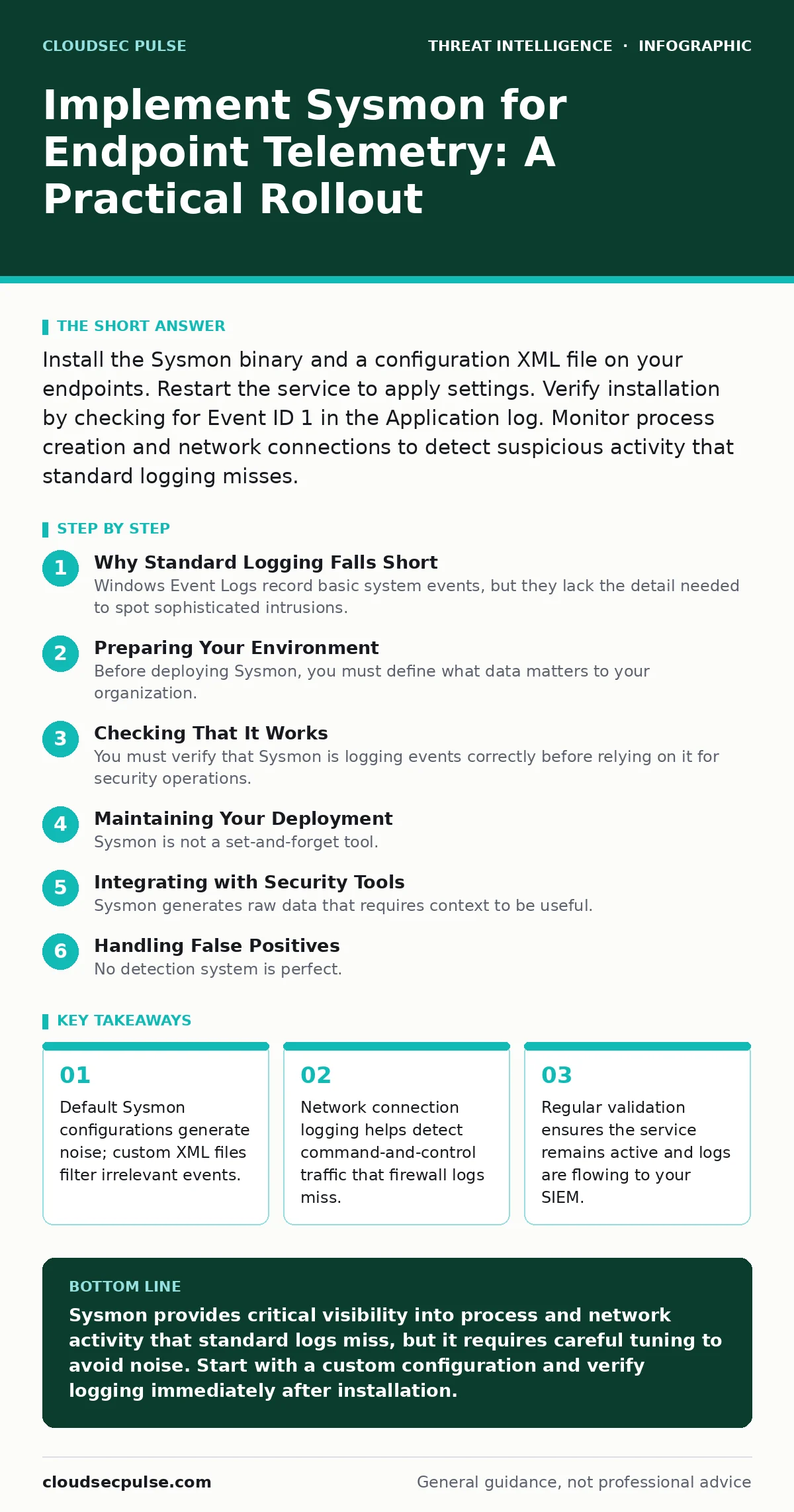
Install the Sysmon binary and a configuration XML file on your endpoints. Restart the service to apply settings. Verify installation by checking for Event ID 1 in the Application log. Monitor process creation and network connections to detect suspicious activity that standard logging misses.
Why Standard Logging Falls Short
Windows Event Logs record basic system events, but they lack the detail needed to spot sophisticated intrusions. Attackers often use legitimate system tools to avoid detection, a tactic known as living-off-the-land attacks. Standard logs show that a command prompt opened, but they rarely show what that command prompt executed or where it sent data.
Sysmon fills this gap by recording detailed process creation, network connections, and file system changes. It runs as a service and a kernel driver, capturing events at a lower level than standard audit policies. This depth allows you to see the full chain of an attack, from initial execution to data exfiltration. Without this visibility, you are blind to many lateral movement techniques.
Preparing Your Environment
Before deploying Sysmon, you must define what data matters to your organization. Installing Sysmon with default settings creates massive log volumes, overwhelming your storage and security information and event management (SIEM) system. You need a configuration file that specifies which events to log and which to ignore. Start by identifying your critical assets and the applications that access them.
Map out the normal behavior of these systems to distinguish between routine operations and anomalies. This baseline helps you tune the configuration to reduce false positives in threat detection. A well-tuned configuration balances visibility with performance. Over-logging can degrade system performance and obscure real threats in noise.
Step 1: Select and Download the Binary
Obtain the Sysmon executable from the official Microsoft source. Verify the digital signature of the file to ensure it has not been tampered with. Place the binary in a secure directory on the target endpoint. Running the executable with the -i flag installs the Sysmon service and the kernel driver. This step registers the service with the Service Control Manager. The service starts automatically when the system boots. Without the -i flag, Sysmon runs only in the current session and does not persist. Persistence is required for continuous monitoring.
Step 2: Apply a Custom Configuration
Sysmon requires an XML configuration file to define its behavior. You can create this file from scratch or use a community-maintained template as a starting point. The configuration file specifies which Event IDs to enable and which processes to exclude. Common exclusions include system processes and trusted software that generates excessive noise. Use the -c flag followed by the path to the XML file when installing or updating Sysmon. This command applies the rules immediately. If you update the configuration later, use the -c flag again to reload the rules. The service restarts automatically to apply the changes.
Step 3: Verify Service Status
After installation, check that the Sysmon service is running. Open the Services console and look for the Sysmon service. The status should be "Running" and the startup type should be "Automatic". If the service fails to start, check the Windows Event Log for errors. Common issues include permission problems or conflicts with other security software. Ensure that the user account running the service has the necessary privileges. The service must run with high integrity to access kernel-level information. Without proper privileges, Sysmon cannot capture all events.
Checking That It Works
You must verify that Sysmon is logging events correctly before relying on it for security operations. Open the Windows Event Viewer and navigate to the Application log. Look for Event ID 1, which indicates a process creation event. If you see these events, Sysmon is active and logging process starts. Check the details of the event to ensure all fields are populated. Missing fields indicate a misconfiguration or a version mismatch. You should also test network connection logging by making a simple HTTP request. Look for Event ID 3 in the Application log. This event records the source and destination IP addresses and ports. If these events appear, your network logging is functional.
- Event ID 1 appears in the Application log
- Event ID 3 appears in the Application log
- Service status is "Running"
- Configuration file is applied without errors
Maintaining Your Deployment
Sysmon is not a set-and-forget tool. You must maintain the configuration and monitor the service health. Regularly review the configuration file to add new exclusions or enable new event types. As your environment changes, new applications may generate noise that needs filtering. Conversely, new threats may require additional logging.
Monitor the service for crashes or restarts. A crashed service means a gap in your telemetry. Set up alerts for Sysmon service failures in your SIEM. This ensures you are notified immediately if monitoring stops. You should also archive old logs to manage storage costs. Retention policies vary by organization, but you need enough history to investigate incidents.
Integrating with Security Tools
Sysmon generates raw data that requires context to be useful. Integrate Sysmon logs with your SIEM to correlate events across multiple endpoints. This correlation helps you identify patterns that indicate a broader attack. For example, multiple process creations on different machines within a short time frame may indicate lateral movement.
You can also use user and entity behavior analytics to detect anomalies in user activity. This approach combines Sysmon telemetry with user login data to spot compromised accounts. Network traffic analysis complements Sysmon by providing visibility into encrypted traffic that Sysmon cannot decrypt. Combining these data sources gives you a more complete picture of your security posture.
See also: Snort and Suricata Rules Checklist for Network Defense · Deploy YARA Rules for Small Business Threat Detection
Handling False Positives
No detection system is perfect. Sysmon will generate alerts for legitimate activities that look suspicious. For example, software updates often create new processes and network connections. You must tune your detection rules to ignore these known benign activities. Review alerts regularly to identify patterns of false positives. Adjust your configuration or SIEM rules to exclude these patterns. This tuning process is ongoing. As your environment evolves, new sources of noise will appear. Neglecting this upkeep leads to alert fatigue, where security teams ignore all alerts. A well-tuned system reduces noise and increases the signal-to-noise ratio. This makes it easier to spot real threats.
Dealing with Evasion Techniques
Attackers know about Sysmon and may try to disable or evade it. Some malware includes routines to stop the Sysmon service or delete its logs. You must protect the Sysmon service from unauthorized changes. Use file integrity monitoring to detect changes to the Sysmon binary or configuration file. Restrict access to the Sysmon service to only authorized administrators.
Monitor for attempts to stop the service or modify its settings. These actions are often indicators of compromise. You can also use honeypots to detect attackers attempting to disable security tools. If an attacker tries to stop Sysmon on a honeypot, you will know they are present. This defense-in-depth approach adds another layer of protection.
Key takeaways
- Default Sysmon configurations generate noise; custom XML files filter irrelevant events.
- Network connection logging helps detect command-and-control traffic that firewall logs miss.
- Regular validation ensures the service remains active and logs are flowing to your SIEM.
Sysmon provides critical visibility into process and network activity that standard logs miss, but it requires careful tuning to avoid noise. Start with a custom configuration and verify logging immediately after installation.
Frequently asked questions
Does Sysmon slow down my computer?
Sysmon has a minimal performance impact when configured correctly. Excessive logging of irrelevant events can increase disk I/O and CPU usage, so tune your configuration to log only necessary events.
Can attackers disable Sysmon?
Yes, attackers with administrative privileges can stop the Sysmon service or delete its logs. Protect the service with file integrity monitoring and restrict access to authorized personnel.
Do I need Sysmon on every machine?
You should deploy Sysmon on all endpoints that handle sensitive data or connect to the internet. Servers, workstations, and laptops should all be monitored to provide comprehensive visibility.
How do I get started with Sysmon configuration?
Start with a community-maintained template and customize it for your environment. Exclude known benign processes and enable logging for process creation, network connections, and file creation.
How this guide was produced: written by the CloudSec Pulse editorial team with AI assistance, checked against the public references listed below, and reviewed when the facts change. See our editorial policy or report an error.